Updated 29 December 2025
With the latest Capacity and Resource Planning features in PSOhub, tracking absences, holidays and public holidays has become seamless. Tasks can now be allocated to team members considering their overall capacity, roles and planned absences. Any scheduled absences or holidays input in the Scheduler or Absence Calendar will now automatically reflect in Resource Planning, facilitating efficient resource allocation.
Scheduling an absence or holiday for a resource
There are two primary methods for scheduling absences, holidays or public holidays within PSOhub:
Note: Only admin users will have access to the Absence Calendar. However, admins, controllers and project managers can make use of the Scheduler.
For more information, please refer to the support articles linked above.
Managing absences, holidays, and public holidays in Resource Planning
Once absences, holidays, or public holidays have been scheduled, these hours will be seamlessly integrated into available capacity and resource planning for each resource.
To view this, go to the Resource Management > Capacity Management. Click on the Planning button next to the desired resource to initiate their planning.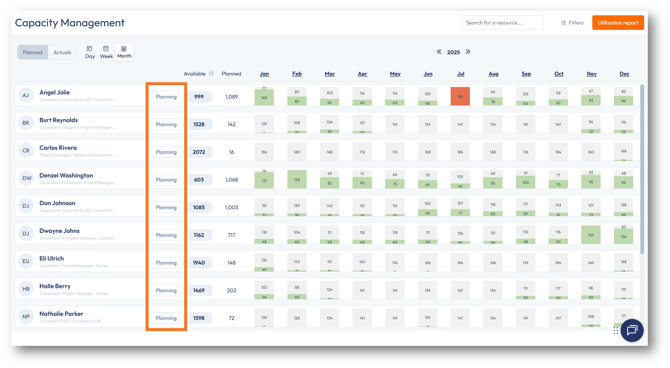
A window opens with the resource's planning, containing a list of projects and any scheduled absences, holidays, or public holidays.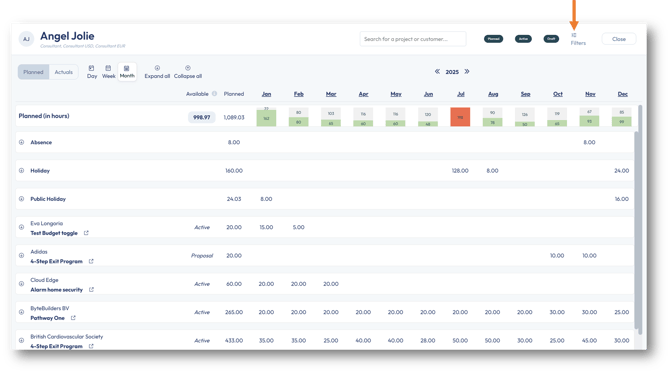
To focus solely on absence, holidays and public holidays, click on the Filters button and deselect all the project stages: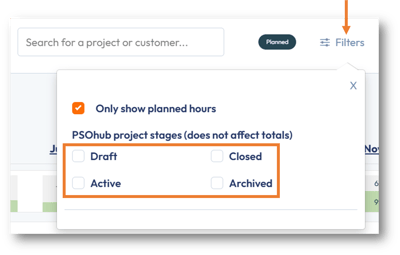
If hours have only been planned but not used, select the Only show planned hours check box: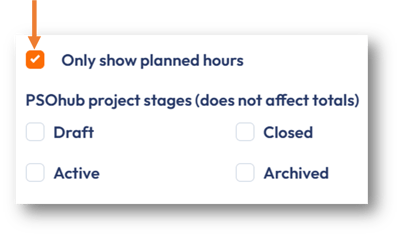
The resource planning will now only display the absence or holiday hours: 
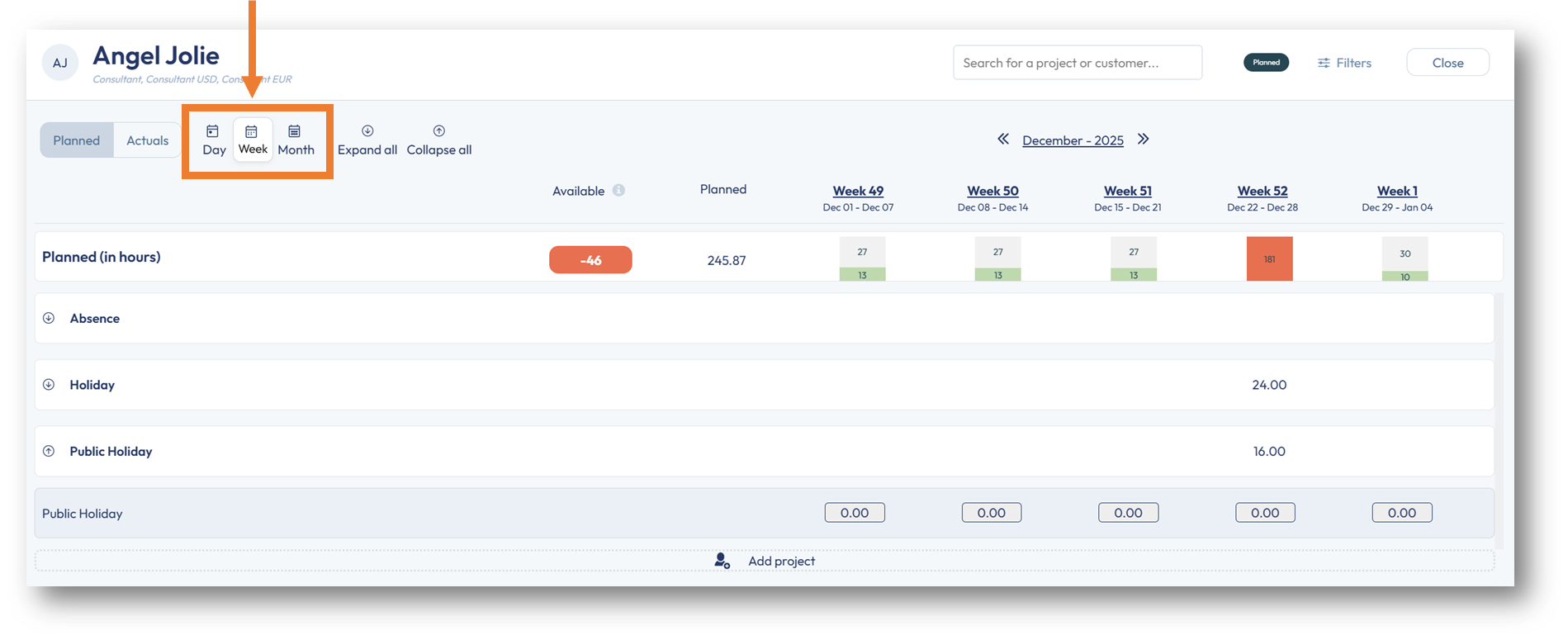
For a detailed breakdown of hours related to absences or holidays, you can navigate to the Weekly or Daily views, using the Week or Day buttons in the top-left corner.