Updated 28 November 2025
In PSOhub, you can plan project resources even if a Budget (baseline) has not been created yet. This allows you to define Contract Lines, assign roles or resources, and begin estimating hours early in the project lifecycle—before your budget is finalized.
You can manually add planning lines, schedule roles or resources, and distribute hours across Month, Week, or Day views. As the project progresses, you can refine your planning, monitor used hours, and keep your workload aligned with real capacity.
This article explains how to plan resources without a budget baseline and how to use the Project Resource Planning module to build and adjust your project’s scheduling structure.
Plan hours for a project
To begin planning resources without a budget baseline:
-
Open your project
-
Go to the Contract tab
-
Click Resource Planning

Note: You must have at least one Contract Line on the project before planning can begin.
If no budget has been defined, the To be planned column will remain blank.
You can still add roles, resources, and planned hours.
From here, make sure the Planned view is selected.

Add Contract Lines to Resource Planning
Since no baseline is being used, Contract Lines do not automatically generate planning rows. You choose which Contract Lines to include.
Option 1: Add all Contract Lines automatically
If your project already has multiple Contract Lines defined, you can add them all at once:
-
Click the ellipsis (…) button in the Resource Planning screen
-
Select Add all lines

Option 2: Add single Contract Lines individually
If you want more control over your planning structure, you can add Contract Lines one at a time.
- Click Add contract line
- A Calculation line window appears
- Select the Contract Line you want to plan
- Click Save
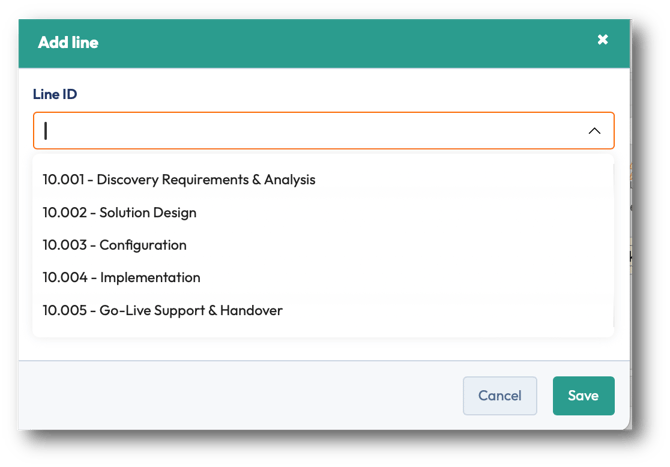
The Contract Line will appear in Resource Planning, ready for you to add roles or resources.
How Contract Lines Appear in Resource Planning
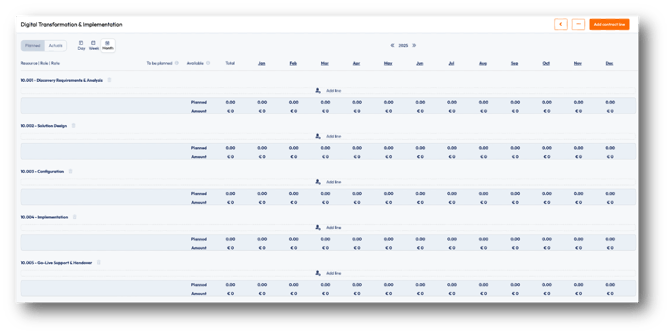
Each Contract Line appears with its own planning section, where you can:
- Add roles or resources
- Plan hours using Month, Week or Day views
- Assign planned hours via Manual Scheduling or Copilot
- Monitor capacity through the Available column
- Compare timesheets against planned hours from the Actuals tab
Add Roles or Resources
After Contract Lines have been added to the Project Resource Planning, the next step is to assign either roles or specific resources. This will determine who will be performing the work.
To add a role or resource:
- Locate the Contract Line
- Click Add Line
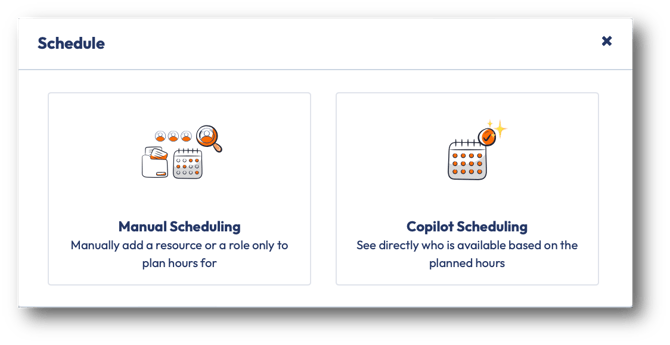
- Choose one of the two scheduling methods.
Option 1: Copilot Scheduling
Allow PSOhub to recommend the best available resource.Works only at the Month planning view.
Option 2: Manual Scheduling
Assign a role or resource directly.
Works in Month, Week and Day planning views.
Use Manual Scheduling when you already know exactly which role or resource should be assigned.
Copilot Scheduling (Monthly only)
Use PSOhub's Copilot Scheduling feature when you know the number of required hours, but are unsure which resources are available or have the necessary skills.
Copilot automatically analyzes:
- Resource roles
- Workload across all projects
- Availability in the selected months
- Capacity limits
- Absence, holidays and internal work
When the Schedule Resource window appears, you can begin planning hours at the Month level.
Note that it will show resources added to the project by default.
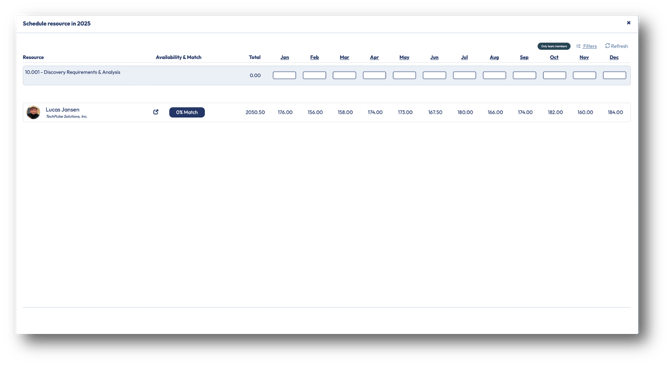
To view the full list of potential resources:
- Remove the Only Team Members filter
- Apply one or more of the following filters:
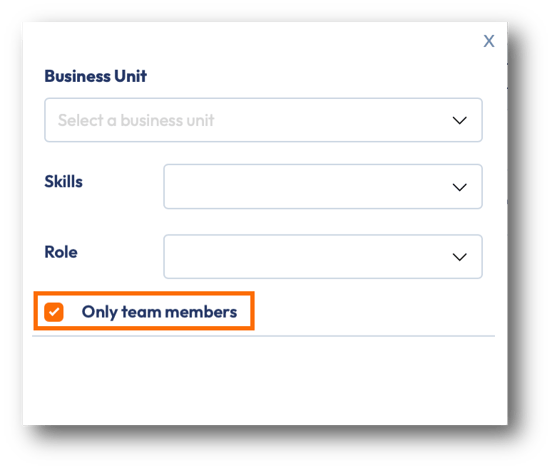
| Filter | Description |
| Business Unit | Filter by organisational structure |
| Skills | Narrow down by skillset |
| Role | Show resources who match the required role |
| Only Team Members | Restrict results to the project's team (on by default) |
PSOhub then calculates a Match % for each resource, based on their available hours compared to the planned hours required.
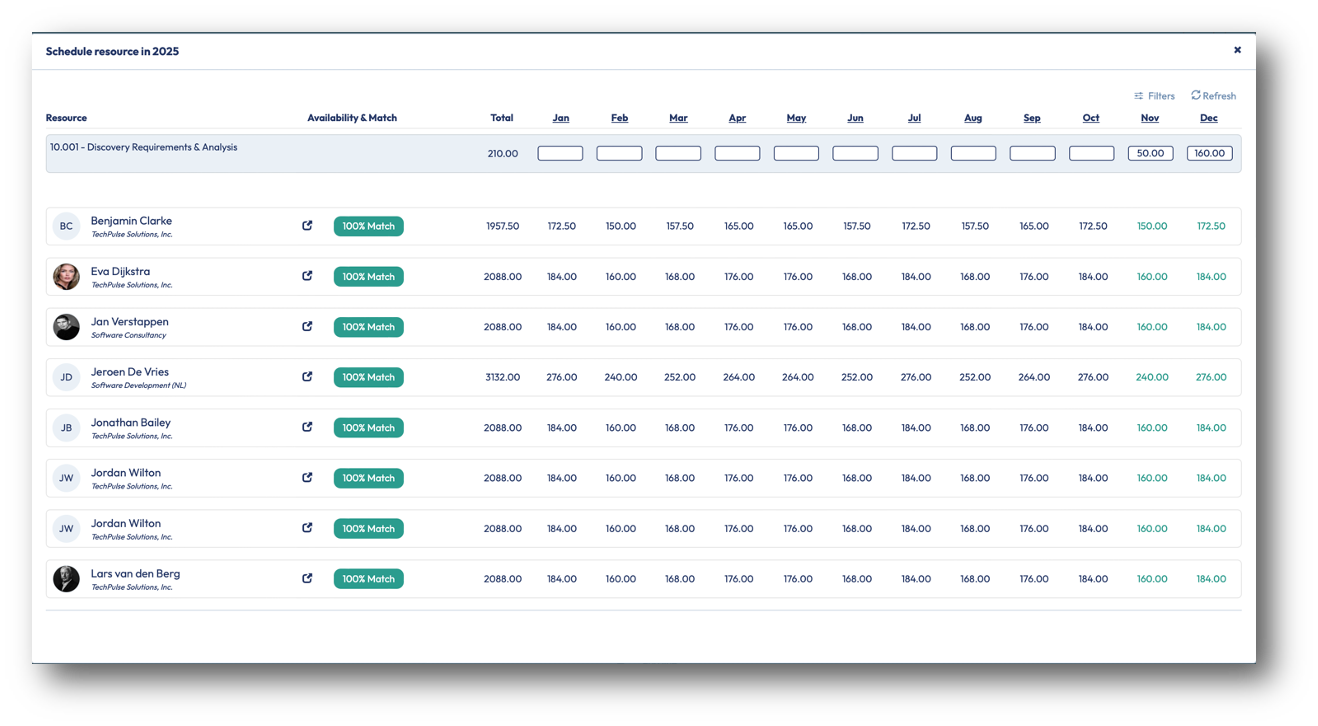
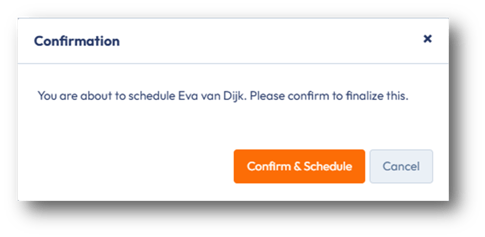
Choose a recommended resource and click Confirm & Schedule to assign them the planned hours.
PSOhub will automatically:
- Assign the selected resource to the Contract Line
- Schedule the planned hours automatically at the Month level
- Update availability across Capacity Management and Resource Planning
Manual Scheduling (Month, Week, Day)
Use Manual Scheduling when assigning resources directly or when planning hours at a more detailed level.
You'll see the Add/Edit Resource window dialog with the following fields:
| Field | Description |
| Available project members | Select a resource that has already been added to the project's Team |
| Other available resources | Choose someone from your organization who has not yet been added to the project's Team. Note: You must choose a project role first before this list is populated |
| Project role | Select the role for the resource assignment |
| Description | Optional field. Add context or extra details about the resource assignment. |
| Selling rate | Auto-filled based on the role or resource assigned. |
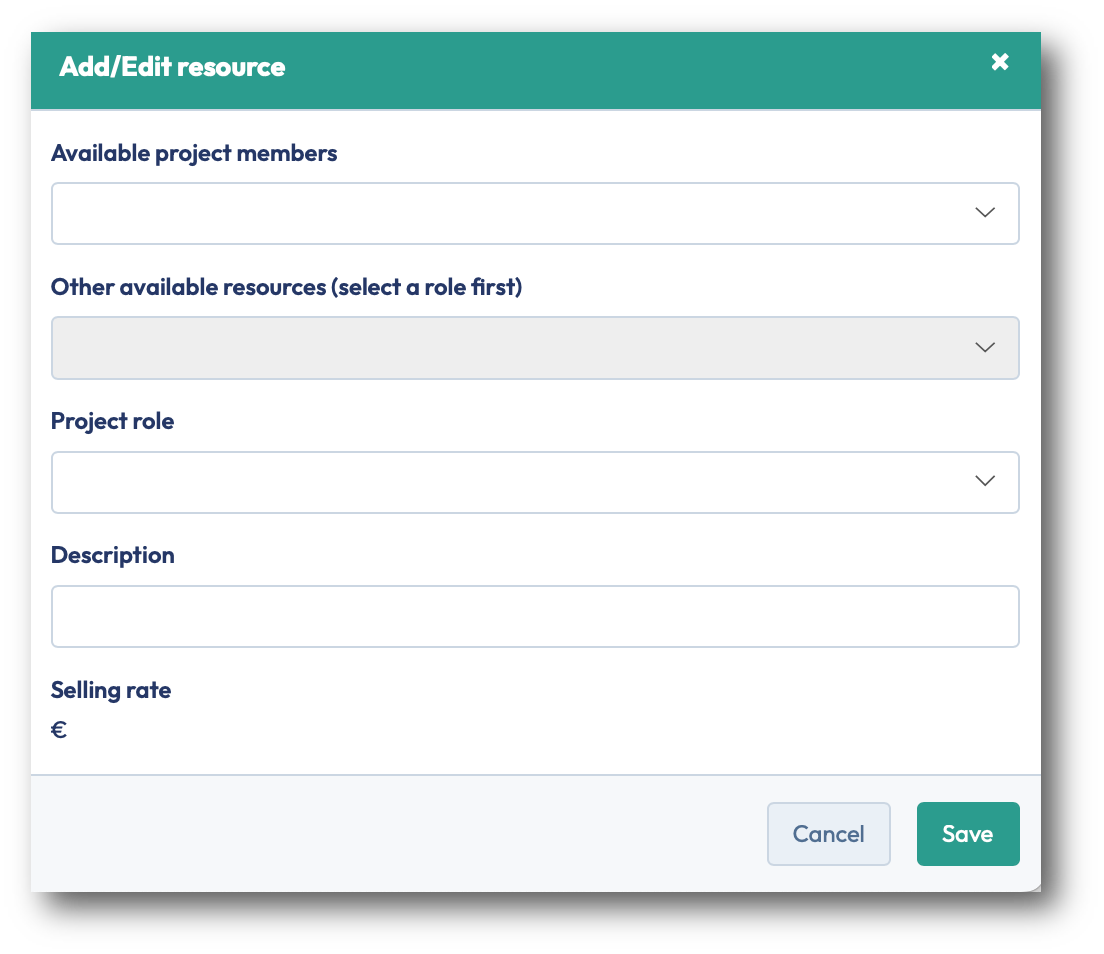
Click Save to create the assignment.
A new planning line appears below the Contract Line with the new role or resource.
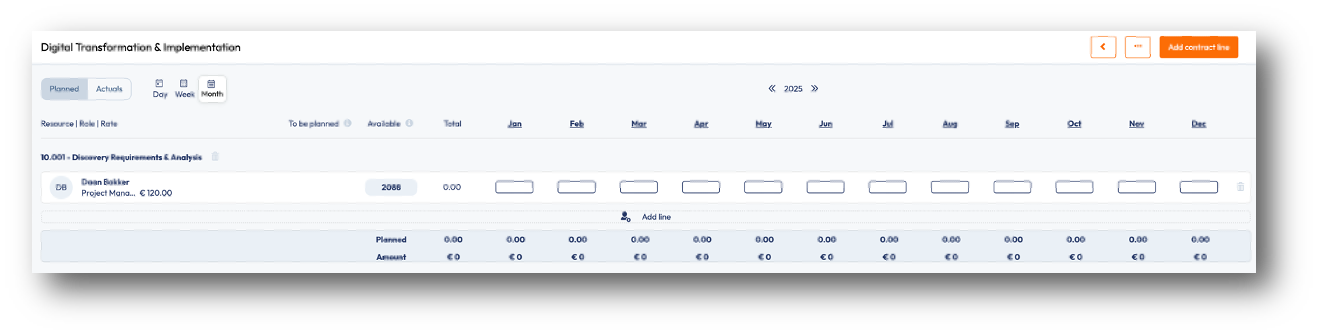
Continue adding roles or resources, by using the Add Line button and repeating the same process.
Once the assignment is created, a planning line appears with the following fields:
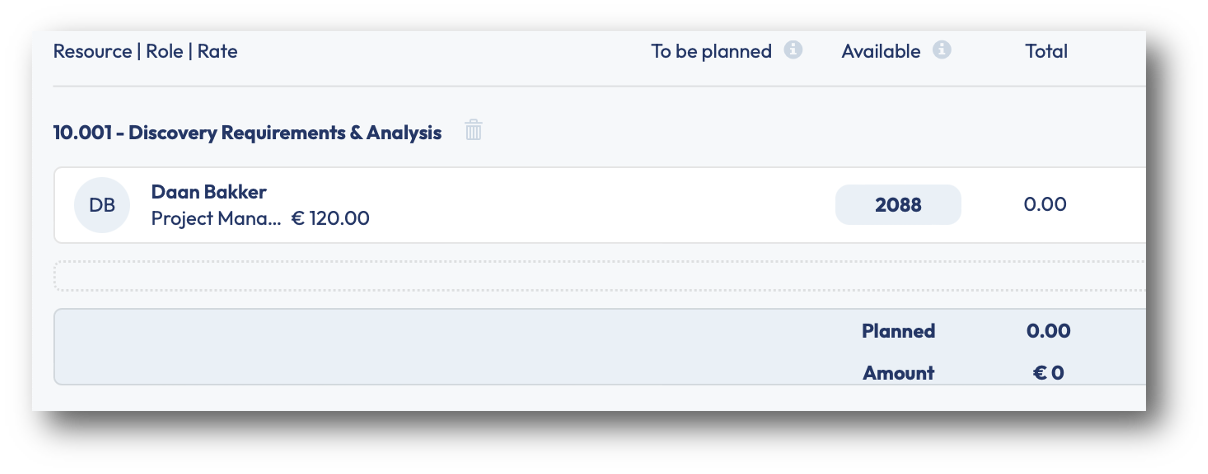
| Field | Description |
| To be planned | Shows remaining budgeted hours (will show blank if no budget baseline has been set) |
| Available | Shows the resource's available capacity for the Month/Week/Day view |
| Total | Shows the total planned hours for the assignment |
Now that your Contract Lines and role/resource assignments are set up, you can begin scheduling hours. PSOhub lets you plan at three different levels: Month, Week or Day.
Each view automatically rolls up or down to ensure consistency across the schedule.
Planning Monthly Hours
Select Month in the top-left corner.

The year is shown from January to December. Use the arrow buttons to navigate between months.

Enter hours under each month. You can use the TAB key on your keyboard to navigate from month to month.
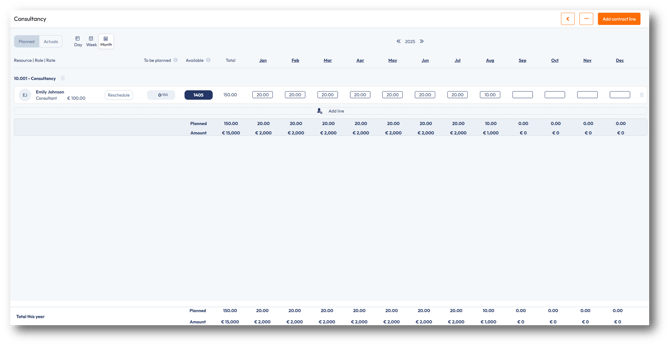
Hours entered monthly are evenly split across all weeks/day in that month.
You can verify Weekly and Daily totals by changing view.
Important: To remove planned hours from a month, you must enter 0 in the field. Deleting or backspacing does not clear the value. It must be set to 0.
Planning Weekly Hours
Select Week, or click directly on a month to open its weekly breakdown.


In the Weekly View, the month selected is broken down into weeks. To navigate to a past or future month, use the left and right arrow buttons.

Some weeks may overlap multiple months. Such weeks will appear for both months on the Weekly View. For example, Week 27 includes dates for both June and July 2025.
Weekly hours are evenly split across the working days of that week. Similarly, weekly hours roll up to the Monthly total.
Planning Daily Hours
Select Day, or click directly on a week to open its daily breakdown.


In the Daily View, the selected week is broken down into working days from Monday to Friday.

When planning daily hours, these will roll up to both Weekly and Monthly totals.
The Day view is ideal for fine-tuning workloads.
Scheduling planned hours for a role
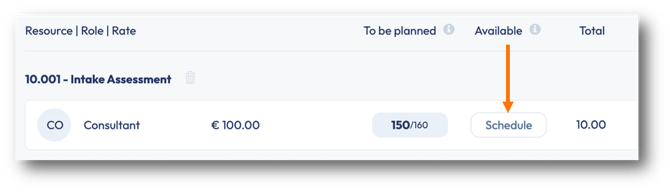
If hours are planned for a role without an assigned resource, you will see a Schedule button under Available.

Compare Planned vs. Actual Hours
Once time entries are recorded against the project, you can compare actual vs planned hours.
Click Actuals in the top-left corner.

The Resource Planning grid now displays:
- Actual hours that have been booked against the project
- A Planned vs Used summary under each Contract Line.
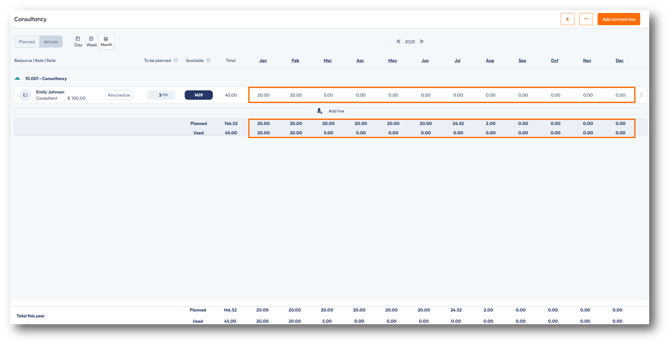
If actual hours exceed planned hours, the Used value appears red.
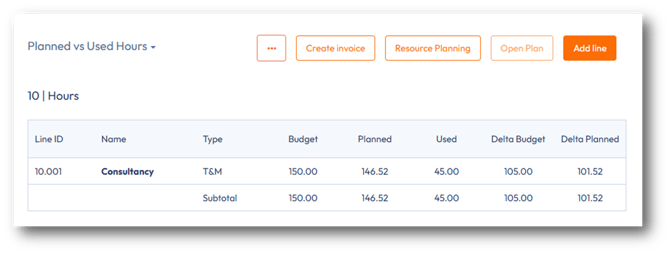
Monitor Planned vs. Used Hours for the project
When finished planning:
- Click the orange back arrow, or click the project name at the top-left.
- In the Contract tab of the project, switch to Planned vs Used Hours
You can now see:
- Budgeted Hours
- Planned Hours
- Used Hours
all aligned at the Contract Line and project level.