
Capacity Management in PSOhub gives you a real-time overview of your team’s workload so you can quickly identify overload, redistribute work, and keep your projects on track. This process—often called resource leveling—helps ensure that no team member is overbooked and that available capacity is used effectively across your organization.
In this article, you’ll learn how to use Capacity Management to:
-
Spot overload and underutilization
-
Understand which resources can take on more work
-
Redistribute planned hours across your team
-
Adjust workloads using the Planning window
-
Scale your project team efficiently
Access Capacity Management
Choose from the menu Resource Management and select Capacity Management.
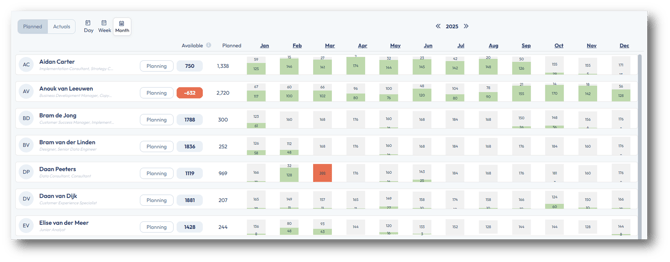
The screen displays a list of your team members with:
- Planned Hours (green) - total hours already assigned
- Available Hours (grey) - remaining capacity based on working schedule
This high-level view gives you a quick snapshot of workload trends before you start adjusting assignments.
Identifying Overload and Availability
Capacity Management makes it easy to see which resources are overallocated, fully booked, or underutilized. This is the first step in balancing workloads across your team.
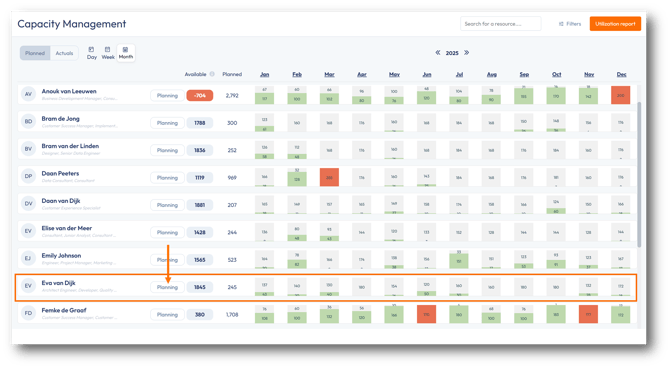
In the example below, the Architect Engineer Daan Peeters has exceeded his capacity for March.
However, Eva van Dijk, who has the same role, still has available capacity.

To level the workload, you can:
- Add the preferred resource to the project (if not yet assigned)
- Use the Reschedule function to shift hours to the preferred resource.
1. Add the available resource to the project
Click the Planning button for the available resource to open the Detailed Resource Planning, then click Add Project.
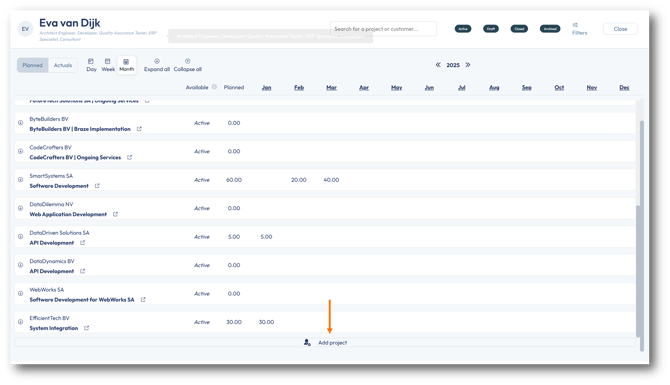
In the Add Project dialog:
- Select the project
- Choose the contract line and role
- Click Save


The new resource is now added to the project team and can take over a portion of the overloaded work.
2. Use the Reschedule function to reassign planned hours
Next, open the project you'd like to reassign planned hours for.
Go to the project's Resource Planning from the Contract tab.
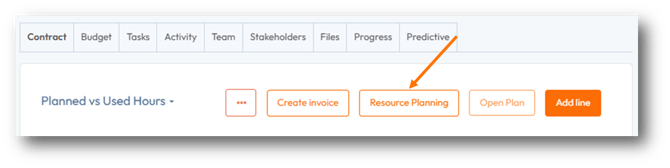
Locate the current resource's planning and click Reschedule.
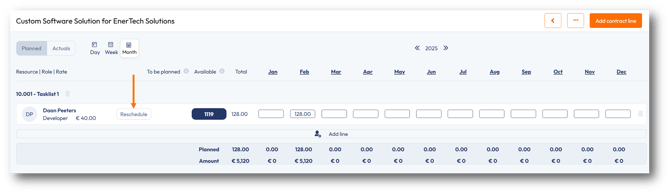
Choose Replace Resource.
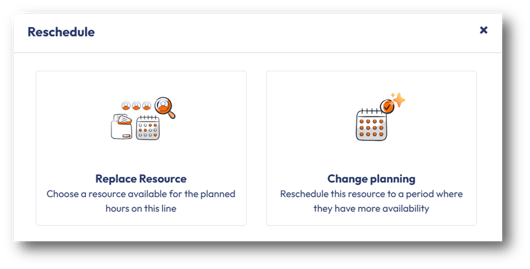
The Schedule Role Overview will show all resources, based on:
- Their availability
- A Match %
- Red/green availability indicators
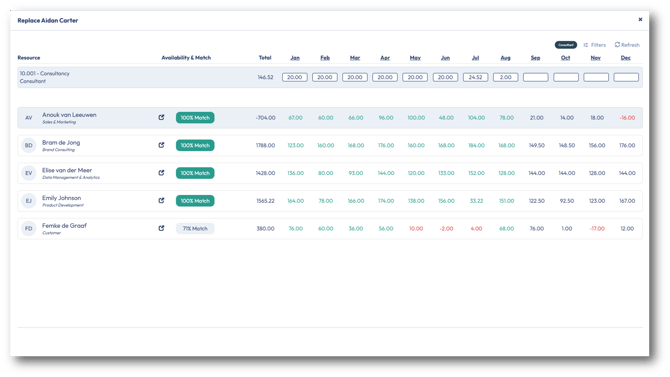
Select the new resource and click Confirm & Schedule.
PSOhub will:
- Move the selected portion of planned hours to the new resource
- Update capacity instantly in the Capacity Management screen (including the overloaded marker from the previous resource)
- Maintain the same Month/Week/Day distribution pattern