
Released: 7 November 2026
Audience
-
All Users — setting up custom fields is available to Admins only
Dear PSOhub user,
With this release, PSOhub introduces Custom Fields. Every organization tracks information that is unique to the way it works, such as a cost center, a go-live date, or whether an NDA is required. You can now add your own fields to PSOhub records, next to the standard fields, so this information lives in one place instead of in spreadsheets or notes.
Admins define a field once. Users then fill it in on the record, and the value is available in overview grids, side panels, and Excel exports.
A Guided Introduction When You Open PSOhub
The first time an Admin opens PSOhub after this release, an Introducing Custom Fields message appears automatically. It walks you through the three steps to get started (create a field, show it in the grid, fill it in on the record) and summarises what Custom Fields can do, so you can get going straight away.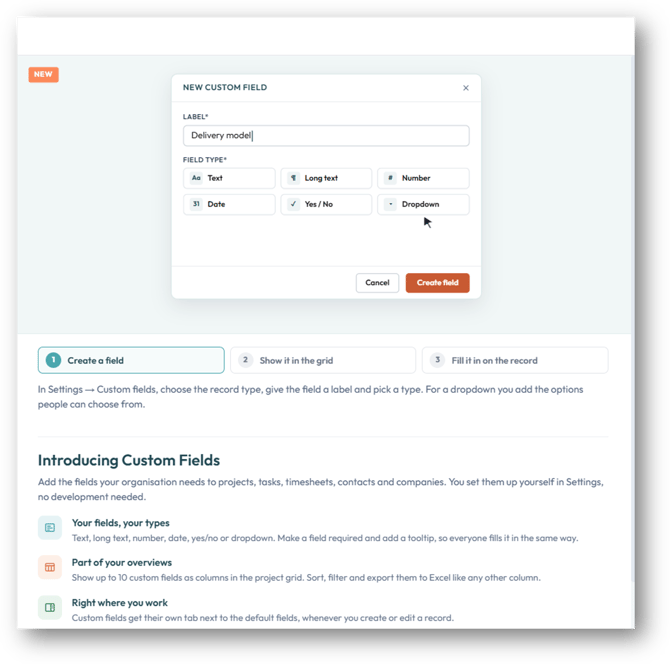
✨ What's New
Set Up Your Fields in One Place
Admins manage all custom fields in Settings > Custom Fields. Click Add field, choose the record type the field applies to, give it a label, and pick a field type.
Custom fields are available for nine record types: Project, Task, Timesheet, Contact, Company, Contract line, Invoice, Expense, and User.
For each field, you can also add:
- A Tooltip that users see as an (i) icon next to the field label on the record
- An Internal description, visible only to admins, to explain what the field is for and who fills it in
The Custom Fields overview shows all fields in one list, with filters per record type and a search box. Drag and drop the fields to set the order in which they appear on records.
Admins also see a one-time Introducing Custom Fields message on the home page, with a shortcut to set up their first fields.
For more information, please refer to this article.
Six Field Types to Choose From
| Field type | Use it for |
|---|---|
| Text | A single line of text |
| Long text | Multiple lines of text |
| Number | A whole or decimal number, with up to 2 decimals |
| Date | A date from a calendar picker |
| Yes / No | A toggle |
| Dropdown | A single choice from a list of options you define |
Fill In Fields Where You Already Work
Users fill in custom fields in the edit popup of the record. Most popups now have a Custom fields tab next to the existing fields. For invoices and user accounts, custom fields appear in a Custom fields section.
On the Tasks tab of a project, you can also edit custom columns directly in the grid. The value is saved as soon as you leave the cell.
See Values at a Glance
Two options control where a custom field is shown besides the edit popup:
- Show as column adds the field as a column in the overview grids of its record type, with the field label as the column header. You can show up to 10 custom fields as columns per record type. Users can hide and show these columns like any other column.
- Show in side panel shows the field, read-only, in a Custom fields section in the left panel of the record. This option is available for Project, Contact, Company, and Invoice.
Filter and Export Your Custom Data
Custom columns work like the standard columns in your grids:
- Sort and filter — numbers and dates use number and date filters. Text, Dropdown, and Yes / No columns use a text filter: type (part of) the option label, or "Yes".
- Accurate totals — when you click Calculate, totals are based on exactly the rows that match your current filters, including filters on custom columns.
- Export to Excel — the Export to Excel button includes your visible custom columns. Numbers and dates are exported as real Excel numbers and dates, so you can sum and sort them straight away.
Who Can Do What
| Admin | Other roles | |
|---|---|---|
| Create, edit, and archive custom fields | Yes | No |
| Open Settings > Custom Fields | Yes | No |
| Fill in custom field values on records | Yes | Yes |
| View custom fields in grids, side panels, and exports | Yes | Yes |
⚠️ Good to Know
- Record type and field type are fixed — you can't change them after a field is created.
- Fields are archived, not deleted — an archived field is hidden on records, but its values are kept. Restoring the field brings the values back.
- Columns after restoring — archiving a field turns off Show as column. Turn it on again after restoring the field if you need the column.
- Optional for users — all custom fields are optional. There is no setting to make a field required.
- Not on quotes — custom fields are not shown when editing a quote.
- Your data stays yours — custom fields and their values are only visible within your own organization.
📌 Note: After you add a custom column or rename a dropdown option, existing values are filled in within a few seconds. Larger organizations may need a little longer.
Reload the grid to see them.
🎯 Impact
- One place for your own data — information that used to live in spreadsheets or notes is now stored on the record itself.
- Better reporting — filter and export on your own fields, with totals that always match the rows you see.
- Clear guidance for users — tooltips and a fixed field order help users fill in the right information in the right place.
- Safe changes — archiving instead of deleting means no data is lost when your needs change.
🔧 Fixes
Accurate Totals in Resource Planning
We've resolved several issues where planned hours and capacity totals in Resource Planning didn't match the hours shown:
- Weekly totals now match the planned hours — in some cases, a week's total included hours that weren't visible in the grid, so totals didn't add up even after setting the line to zero. Totals now reflect exactly the hours shown.
- Removing a resource after clearing their hours — when all planned hours on a line were set to zero, removing the resource could still report that hours were planned. You can now remove the resource as expected.
- Correct planned hours for internal projects — weekly planned hours on internal hours projects are now calculated correctly.
If you have any questions or suggestions, our support team is ready to help via live chat.
Best regards,
The PSOhub Team