
Updated: 14 March 2026
Audience
- PSOhub Administrators
- Financial Controllers
- Project Managers with full financial access
Objective
For any project, there can be instances when, after partial invoicing, the resource selling rate or cost rate changes, or a mistake has been made. In PSOhub, there is an option to increase the selling rate and cost rate with a fixed amount and recalculate the costs of resources planned for the project all at once.
In the example below, you will see that we have one contract line called Consultancy, and some hours have been invoiced based on the hourly rates of the project team members:

The current Selling rate of $250.00 for hours booked. The first entry has been invoiced, which is reflected in the amount invoiced above:

Now, imagine that halfway through the project, a mistake was made with the Selling and/or Cost rate, or the rates have increased/decreased.
Steps
-
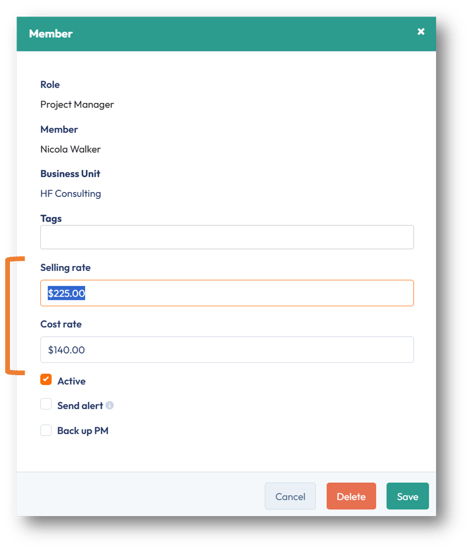
In the Team tab, change the Selling rate and/or Cost rate for a role(s).
-
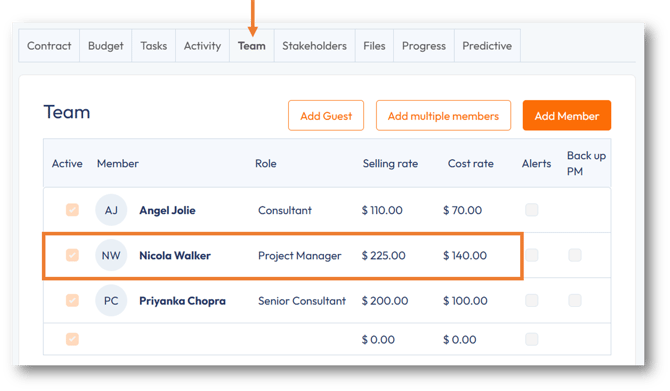
Click Save to return to the Team tab and see the updated rates.
- Click the Contract tab.
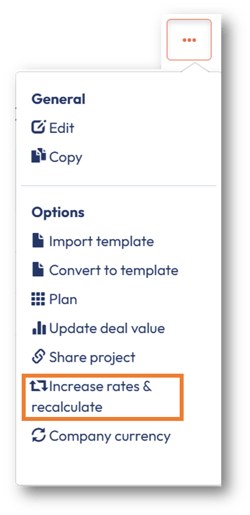
- Click the ellipsis button and select Increase rates & recalculate.
- In the following window, select the Recalculate open timesheets after updating rates check box.
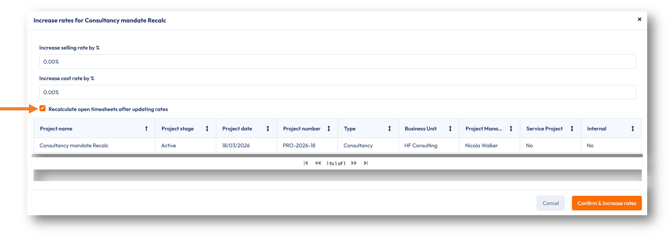
- Click Confirm & Increase rates.
- The Confirmation dialog window will appear. Click Confirm.
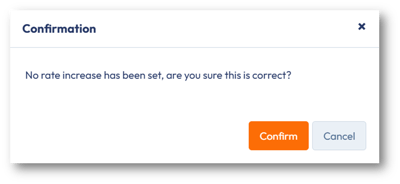
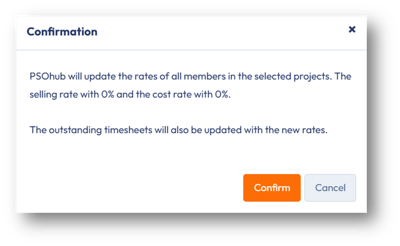
- On the next dialog window, click Confirm.
- You will receive an email once all timesheets have been updated.
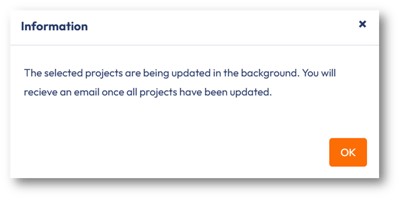
- Click OK.
- Refresh the page.
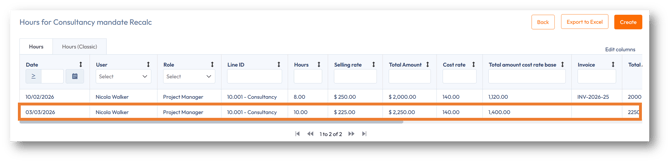
- Go to the project's Hours panel and select Show all related hours.
The new rate and recalculated hours will appear.


Next Steps
- If applicable, approve the hours: Project Manager Approval and/or Team Lead Approval.
- Invoice the hours.