
Published: 1 June 2026
Audience
- Admin
Objective
Learn how to create a product in PSOhub and link it to a price list so your team can apply consistent pricing in quotes and projects.
Prerequisites
Before creating a product in PSOhub, ensure the following are in place:
 You have Admin user access
Only admin users have access to set up products and pricelists in PSOhub.
Pricelists for your products have been configured
At least one pricelist must already exist. See Create a Price List if you have not set one up yet.
Steps
- Navigate to Settings (gear icon) and select Products.
- Open an existing price list by clicking its name.
- Click Add product.
- In the Create product window, complete the fields as needed.
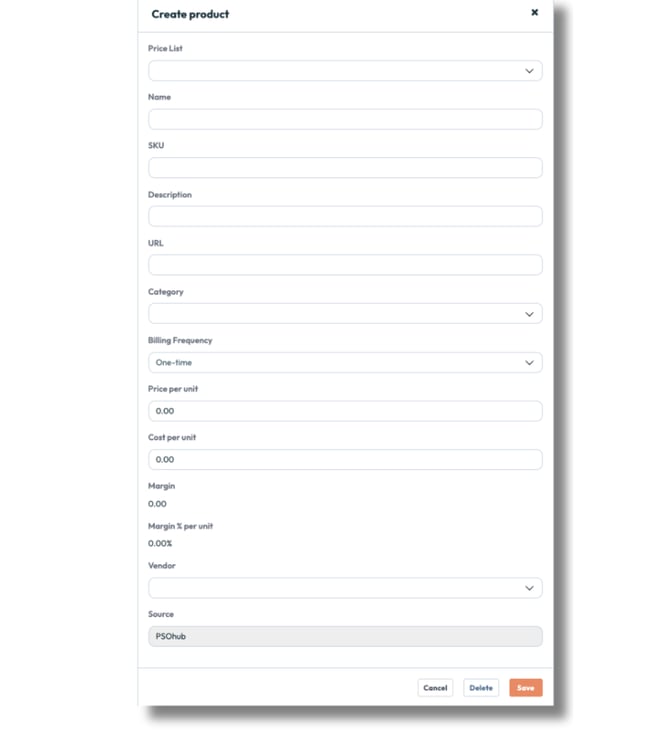
💡 Tip: Only Name and Price list are required. All other fields are optional but recommended for accurate reporting and invoicing.
- Click Save.
- To add additional products to the same price list, click the Add product button, and repeat the steps above.
Result
The product is created and linked to the selected price list. It will appear in the product list under that price list and can now be selected when building quotes or projects in PSOhub.
Next Steps
✅ Create a product category
Group your products by service type, billing model, or department for easier management.
Product Category: How to Create and Manage Product Categories in PSOhub
✅ Use products in a quote or contract
Learn how to apply your price list when building a quote or structuring a project.
What Is a Product Contract Line in PSOhub?