
Published: 01 June 2026
Audience
-
Admin
-
Controller
-
Project Manager
Objective
This article explains how to modify an existing time entry for a resource in PSOhub. You can make changes from the All Hours overview or directly from the Hours tab within a project.
Prerequisites
 You must have Admin, Controller, or Project Manager access in PSOhub. The time entry must already exist in the system. To change the project on a time entry, the resource must be an active team member on the target project.
Method 1: Edit from the All Hours tab
Use this method to edit time entries across all projects from a single view.
- Navigate to Time & Expenses in the top menu and select All Hours.
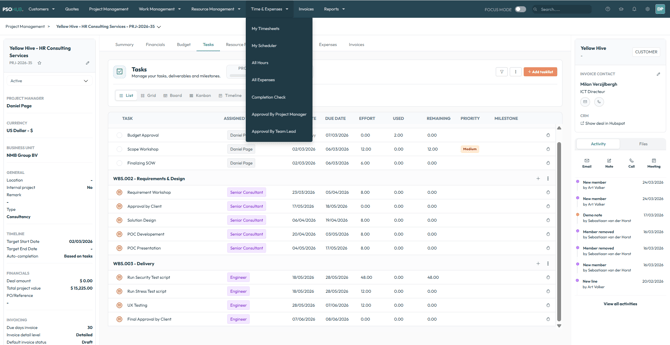
- The All Hours page opens, showing all time entries across projects.
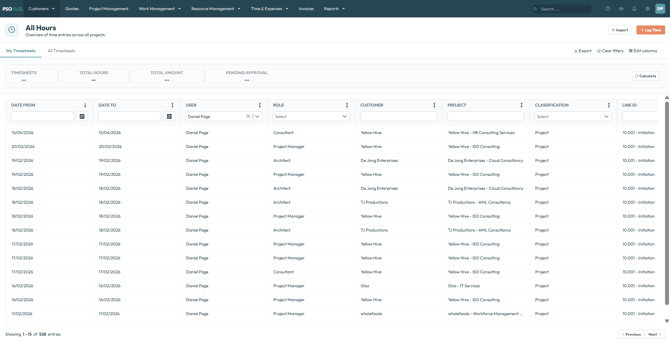
- Use the filter fields at the top of the columns to narrow down the list. You can filter by User, Role, Customer, Project, Classification, or Line ID.
- Click the time entry you want to modify. The Timesheet dialog opens.
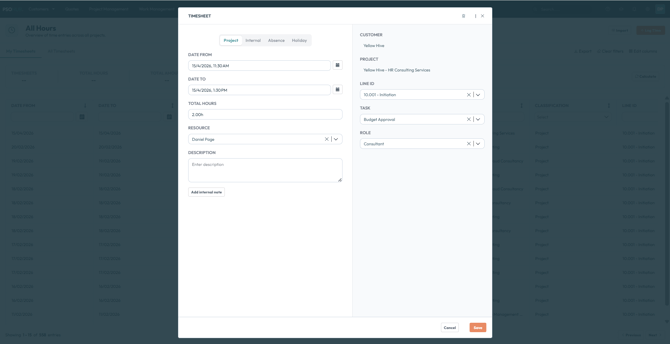
- Make the necessary changes to the entry.
- Click Save.
Method 2: Edit from the Hours tab in a project
Use this method when you are already working within a specific project and want to modify a time entry directly.
- Open the project you want to work in.
- Click the Hours tab in the project navigation.
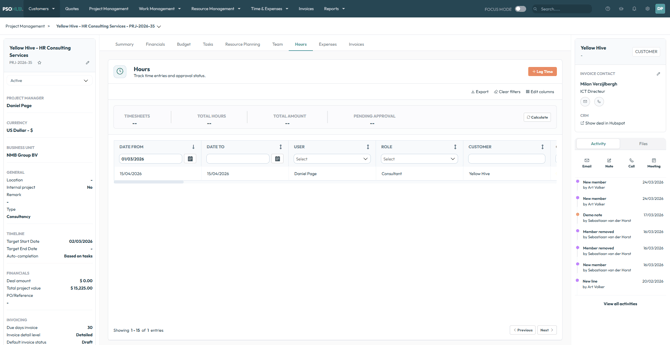
- The Hours overview loads, showing all time entries for this project.
- Use the filter fields to narrow down the list by User, Role, or date range if needed.
- Click the time entry you want to modify. The Timesheet dialog opens.
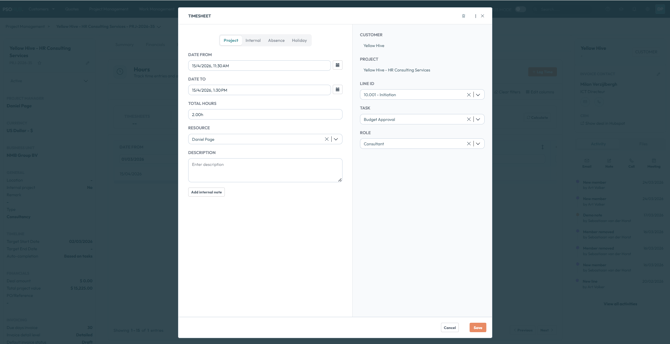
- Edit the required fields and click Save.
Result
The time entry is updated and the change is reflected immediately in the project's hours and financial data.
Troubleshooting
The project field is not showing the correct project after I change it.
Make sure the resource is an active team member on the target project. If the resource has not been added to the project, the project will not be available to select. Add the resource to the project team first, then return to the time entry to update it.
I cannot see another user's time entries in the All Hours view.
Check that you are on the All Timesheets tab, not the My Timesheets tab. Also confirm that your user role has the permissions required to view and edit time entries for other users. Admin and Controller roles have full access; Project Manager access may be scoped to their own projects.
The Customer field is not showing any options after I clear it.
After clearing the customer selection, click inside the field to trigger the full customer list to load. If no customers appear, check your internet connection and refresh the page.
The time entry was already invoiced, can I still modify it?
Time entries that have already been included on an invoice cannot be edited directly. If a correction is needed, contact your administrator to review the invoice before making changes to the underlying time entry.
Frequently Asked Questions
Can I change the role on a time entry after it has been submitted?
Yes. The Role field can be updated in the Timesheet dialog as long as the entry has not been invoiced. Changing the role will update the billing rate applied to the entry, which may affect the financial totals on the contract line.
Can I move a time entry to a different project?
Yes, as long as the resource is an active team member on the target project. Select the new project in the Project field within the Timesheet dialog, then select the appropriate Line ID for that project before saving.
Will modifying a time entry affect an approved timesheet?
If the time entry has already been approved by a Project Manager or Admin, editing it may reset the approval status depending on your organization's approval settings. Check with your administrator if you are unsure whether changes will trigger a re-approval workflow.
Can I modify time entries in bulk?
No. Time entries must be edited individually in the Timesheet dialog. There is no bulk-edit option for time entries in PSOhub.
Next Steps
✅ Review all time entries pending approval
Check which time entries are awaiting your approval as project manager or admin.
Time Approval: How Does It Work in PSOhub?
✅ Log a new time entry for a resource
Book hours on behalf of a team member directly from the All Hours overview.
How to create a time entry for another resource
✅ Create an invoice based on the time booked
Generate an invoice for the hours you've logged against the project.
How to do manual invoicing of T&M and expenses