
Published: 01 June 2026
Audience
-
All Users
Objective
This article explains how to book time on a task in PSOhub using Log hours or Start timer directly from a task. You can do this from a project plan or from My Tasks.
Prerequisites
 You must have an active user account in PSOhub. The task must be linked to a project and a contract line. You must be assigned to the related project
Steps
- Open your project and click the Tasks tab.
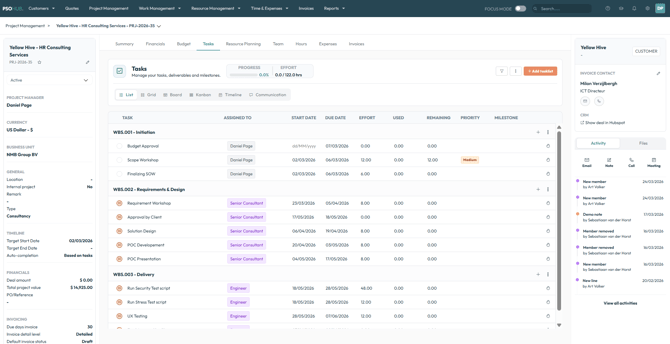
- Click on the clock icon of task you wish to book time on, where you will see two options:
- Click Log hours to enter a specific date, duration, and description manually.
- Click Start timer to begin tracking time automatically from this moment.Choose how you want to book time:
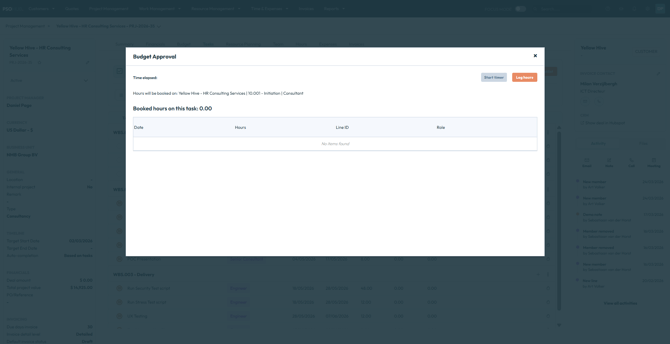
📌 Note: You can also book time from My Tasks — the steps are the same.
Option A: Log hours
- Enter the date for the time entry.
- Enter the number of hours you want to log.
- Enter an optional description.
- Click Save.
💡 Tip: Enter time in decimal format. For example, 30 minutes = 0.50 hours, 15 minutes = 0.25 hours.
Option B: Start timer
- Click Start timer. PSOhub begins tracking time automatically.
- When you are done working on the task, click Stop. PSOhub saves the time entry against the task. You can edit the entry by clicking on it.
📌 Note: Time is displayed in decimal format. For example, 30 minutes = 0.50 hours.
Result
The time entry is saved and the Used hours column updates on the task to reflect your booking. 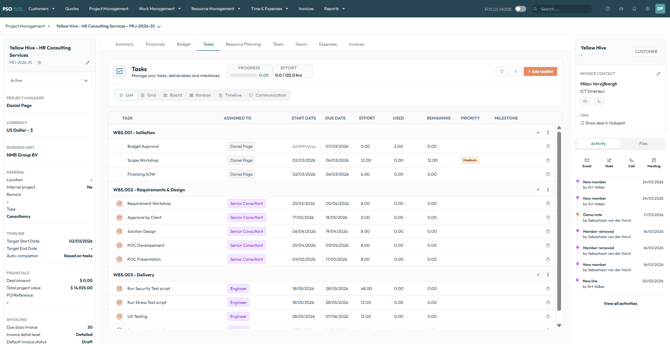
Troubleshooting
Unable to book time on a task.
This can happen for two reasons:
- The task depends on another task that has not yet been completed. Complete the preceding task first.
- The resource is not apart of the project team related to the task.
Frequently Asked Questions
Can I edit a time entry after saving it?
Yes. Click on the time entry in the task modal to open it and make changes. You can update the date, hours, or description.
How do I enter time in less than one hour?
Use decimal format. For example, 30 minutes = 0.50 hours, 15 minutes = 0.25 hours, 45 minutes = 0.75 hours.
Can I change the contract line or role on a time entry?
Yes. The project, contract line, and role are shown in the task pop-up before you save. Click the link to change any of these before saving the entry.
Does the timer keep running if I close PSOhub?
Yes. The timer continues running in the background. When you return, you can stop it and save the entry.
Next Steps
✅ Modify a time entry for a resource
Need to correct a time entry after saving it? Learn how to update hours, date, or description. Modify a time entry for a resource
✅ Book time manually in the Timesheet Calendar
Prefer to log time across multiple projects in one view? Use the Timesheet Calendar to manage your entries.
Book time manually in the Timesheet Calendar
✅ Get your hours approved
Once you have logged your hours, find out how the approval process works for your team.
Approval of hours: how does it work?